> ## Documentation Index
> Fetch the complete documentation index at: https://arize-ax.mintlify.site/docs/llms.txt
> Use this file to discover all available pages before exploring further.

# Run experiment

> Run experiments to test model, prompt, agent changes. Experiments can be run via the UI or via code.

# Run experiment via UI

<Frame>
  <video
    src="https://storage.googleapis.com/arize-phoenix-assets/assets/images/run_experiment_ui_full.mp4"
    width="100%"
    height="100%"
    style={{
  display: 'block',
  objectFit: 'fill',
  backgroundColor: 'transparent'
}}
    controls
    autoPlay
    muted
    loop
  />
</Frame>

## 1. Test a prompt in playground

First, [create a dataset](ax/develop/datasets/how-to-datasets). Load the dataset you created into prompt playground, and run it to see your results. Once you've finished the run, you can save it as an experiment to track your changes.

## 2. Run an evaluator on your playground experiments

Use [evaluators](/ax/evaluate/evaluators) to automatically measure the quality of your experiment results. Once defined, Arize AX runs it in the background. Evaluators can be either LLM Judges or code-based assessments.

## 3. Compare experiment results

Each prompt iteration is stored separately, and Arize AX makes it easy to compare experiment results against each other with [**Diff Mode**](/ax/develop/datasets-and-experiments/compare-experiments)**.**

You can also use [Alyx](/ax/alyx) to get automated insights as you compare your experiments, with the ability to both **summarize results** and **highlight key differences** across runs.

## Run experiment via Code

Check out the API reference for more details:

<Card title="API Reference: run_experiment" icon="code" href="https://arize-client-python.readthedocs.io/en/latest/experiments.html#arize.experiments.client.ExperimentsClient.run" />

## 1. Define your dataset

You can [create a new dataset](/ax/develop/datasets/how-to-datasets) or use an existing dataset.

<CodeGroup>
  ```python Python SDK v8 theme={null}
  from arize import ArizeClient
  import pandas as pd

  # Example dataset
  inventions_dataset = pd.DataFrame({
      "attributes.input.value": ["Telephone", "Light Bulb"],
      "attributes.output.value": ["Alexander Graham Bell", "Thomas Edison"],
  })

  client = ArizeClient(api_key="your-arize-api-key")
  dataset = client.datasets.create(
      space_id="your-arize-space-id",
      name="test_dataset",
      examples=inventions_dataset,
  )
  dataset_id = dataset.id
  ```

  ```python Python SDK v7 theme={null}
  from arize.experimental.datasets import ArizeDatasetsClient
  from arize.experimental.datasets.utils.constants import GENERATIVE
  import pandas as pd

  # Example dataset
  inventions_dataset = pd.DataFrame({
      "attributes.input.value": ["Telephone", "Light Bulb"],
      "attributes.output.value": ["Alexander Graham Bell", "Thomas Edison"],
  })

  arize_client = ArizeDatasetsClient(api_key="your-arize-api-key")
  dataset_id = arize_client.create_dataset(
      space_id="your-arize-space-id",
      dataset_name="test_dataset",
      dataset_type=GENERATIVE,
      data=inventions_dataset
  )
  ```
</CodeGroup>

## 2. Define a task

A **task** is any function that you want to run on a dataset. The simplest version of a task looks like the following:

```python theme={null}
def task(dataset_row: Dict):
    return dataset_row
```

When you create a dataset, each row is stored as a dictionary with attributes you can retrieve within your task. This can be the user input, the expected output for an evaluation task, or metadata attributes.

```python theme={null}
import openai

def answer_question(dataset_row) -> str:
    invention = dataset_row.get("attributes.input.value")  # example: "Telephone"
    openai_client = openai.OpenAI()

    response = openai_client.chat.completions.create(
        model="gpt-4.1",
        messages=[{"role": "user", "content": f"Who invented {invention}?"}],
        max_tokens=20,
    )

    return response.choices[0].message.content
```

#### Task inputs

The task function can take the following optional arguments for convenience, which will automatically pass `dataset_row` attributes to your task function. The easiest way to access anything you need is using `dataset_row`.

<table><thead><tr><th width="113.009765625">Parameter</th><th width="180.8779296875">Description</th><th width="215.1337890625">Dataset Row Attribute</th><th>Example</th></tr></thead><tbody><tr><td><code>dataset\_row</code></td><td>the entire row of the data, including every column as dictionary key</td><td>--</td><td><code>def task\_fn(dataset\_row): ...</code></td></tr><tr><td><code>input</code></td><td>experiment run input</td><td><code>attributes.input.value</code></td><td><code>def task\_fn(input): ...</code></td></tr><tr><td><code>expected</code></td><td>the expected output</td><td><code>attributes.output.value</code></td><td><code>def task\_fn(expected): ...</code></td></tr><tr><td><code>metadata</code></td><td>metadata for the function</td><td><code>attributes.metadata</code></td><td><code>def task\_fn(metadata): ...</code></td></tr></tbody></table>

## 3. Define an evaluator (Optional)

You can also optionally define an evaluator to assess your task outputs in experiments. These evaluators can be [LLM Judges](/ax/evaluate/evaluators/llm-as-a-judge) or [Code Evaluators](/ax/evaluate/evaluators/code-evaluations). For example, here's a simple code evaluator that verifies whether the LLM output aligns with the expected output:

<CodeGroup>
  ```python Python SDK v8 theme={null}
  from arize.experiments import EvaluationResult

  def is_correct(output, dataset_row):
      expected = dataset_row.get("attributes.output.value")
      correct = expected in output
      return EvaluationResult(
          score=int(correct),
          label="correct" if correct else "incorrect",
          explanation="Evaluator explanation here"
      )
  ```

  ```python Python SDK v7 theme={null}
  from arize.experimental.datasets.experiments.types import EvaluationResult

  def is_correct(output, dataset_row):
      expected = dataset_row.get("attributes.output.value")
      correct = expected in output
      return EvaluationResult(
          score=int(correct),
          label="correct" if correct else "incorrect",
          explanation="Evaluator explanation here"
      )
  ```
</CodeGroup>

## 4. Run the experiment

This runs your task function against each row in the dataset, evaluates the outputs, and logs the results and traces to Arize AX.

<CodeGroup>
  ```python Python SDK v8 theme={null}
  experiment, experiment_df = client.experiments.run(
      name="basic-experiment",
      dataset_id=dataset_id,
      task=answer_question,
      evaluators=[is_correct],
      concurrency=10,
      exit_on_error=False,
      dry_run=False,
  )
  ```

  ```python Python SDK v7 theme={null}
  arize_client.run_experiment(
      space_id="your-arize-space-id",
      dataset_id=dataset_id,
      task=answer_question,
      evaluators=[is_correct],
      experiment_name="basic-experiment",
      concurrency=10,
      exit_on_error=False,
      dry_run=False,
  )
  ```
</CodeGroup>

We offer several convenience attributes:

* `concurrency`  reduces time to complete the experiment.
* `dry_run=True`  does not log the result to Arize AX.
* `exit_on_error=True` makes it easier to debug when an experiment doesn't run correctly.

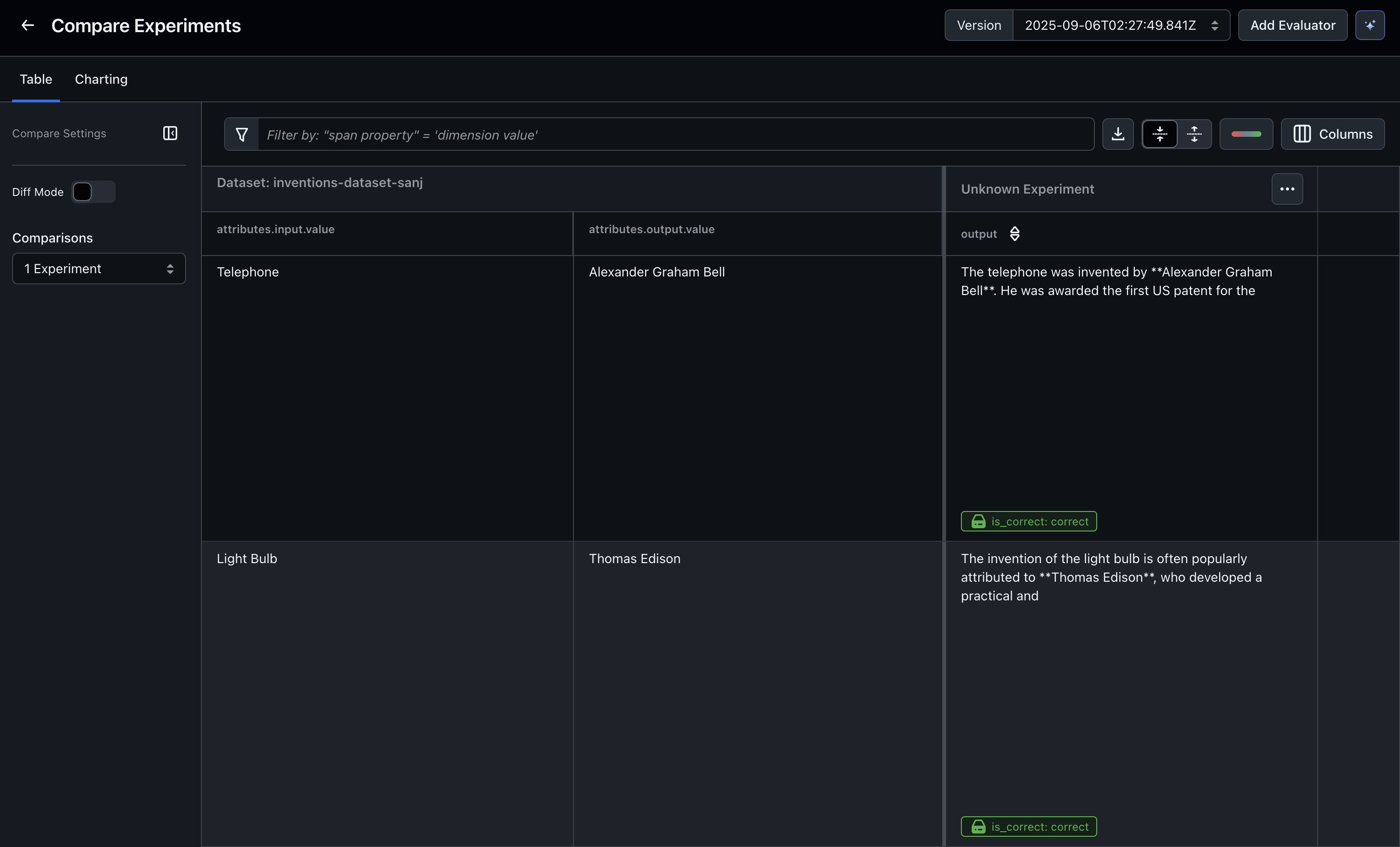
Once your experiment has finished running, you can see your experiment results in the Arize AX UI.

<Frame>
  <img src="https://storage.googleapis.com/arize-phoenix-assets/assets/images/arize-docs-images/arize-experiments-quickstart-code.png" alt="" />
</Frame>