> ## Documentation Index
> Fetch the complete documentation index at: https://arize-ax.mintlify.site/docs/llms.txt
> Use this file to discover all available pages before exploring further.
# Test a prompt
> Run prompts over your data; compare versions in the Playground before shipping to production.
**Testing a prompt** means running it against your **data** and scoring outputs with [**evaluators**](/ax/evaluate/evaluators). You can replay production traces, compare versions side by side, and catch regressions before anything ships.
Once a prompt is saved to **Prompt Hub**, attach a **dataset**, run the model, and open **View Experiment** for a full breakdown of results.
For the conceptual model — what the Playground is for, the three modes (run on dataset, replay on spans, side-by-side compare) — see [The Prompt Playground](/ax/concepts/prompts/prompt-playground).
## Workflow
Coming soon!
Open **Alyx** and load your data, or ask it to **generate** examples from your use case. You can also start from a **production span**—**Alyx** has the full context automatically.
Ask **Alyx** to load a prompt from **Prompt Hub**. For dataset runs, make sure to align `` `{variables}` `` referenced in your prompt with dataset columns.
Refine in **Alyx** until the prompt matches what you want to test.
Ask **Alyx** to draft an [**evaluator**](/ax/evaluate/evaluators). Describe what you want to evaluate and it sets up the labels and criteria.
Ask **Alyx** to run the experiment.
Open [**Datasets & Experiments**](/ax/improve/experiment-in-playground#compare-experiments) to compare outputs, latency, tokens, and scores from [**evaluators**](/ax/evaluate/evaluators). You can also ask **Alyx** to summarize the results for you.
 ### On a dataset
When modifying a prompt in the **Playground**, you can test your new prompt across a dataset of examples to validate that the model is hill climbing in terms of performance across challenging examples, without regressing on core business use cases.
Follow [**Build a dataset**](/ax/improve/build-a-dataset) to upload your dataset to **Arize AX**.
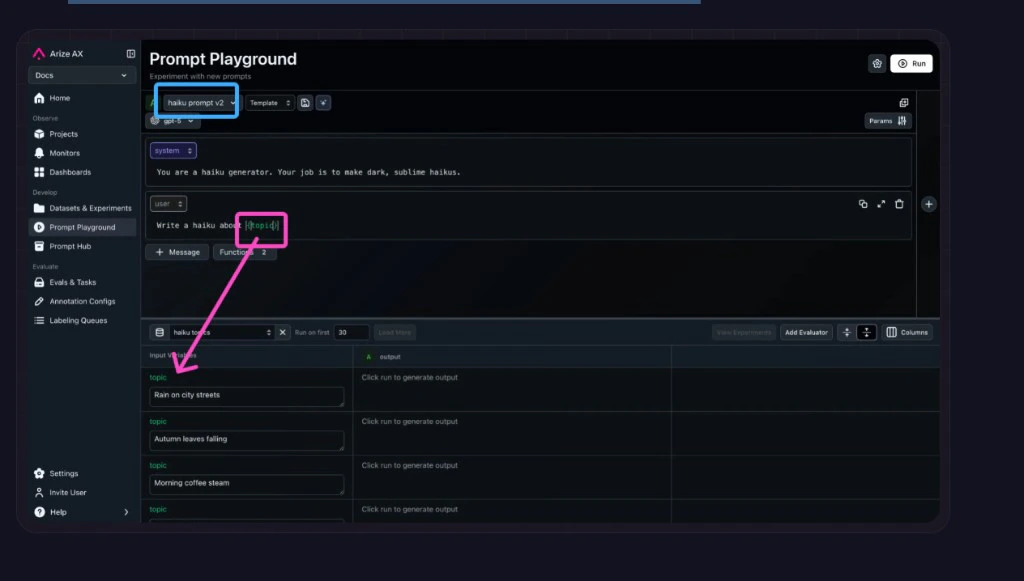
Go back to the **Prompt Playground** and choose your dataset from the **Select a Dataset** dropdown.
**Load a prompt** from **Prompt Hub** using the **Select a template from Prompt Hub** dropdown. **Or** fill in a new prompt (see [Build a prompt](/ax/improve/build-a-prompt)). Include variables from your dataset in the prompt inside curly braces (for example `` `{destination}` ``).
[**Evaluators**](/ax/evaluate/evaluators) score each row. **Attach an evaluator:** [code-based](/ax/evaluate/evaluators/code-evaluations) for deterministic checks, or [**LLM-as-a-Judge**](/ax/evaluate/evaluators/llm-as-a-judge) for qualitative scoring.
Click **Run**. The Playground fills each row's variables, calls your model, and scores the output. Open **View Experiment** to compare results and look for patterns. For each row, the Playground substitutes values into the template, calls your model, and runs every attached [evaluator](/ax/evaluate/evaluators) on the generated output.
### On a dataset
When modifying a prompt in the **Playground**, you can test your new prompt across a dataset of examples to validate that the model is hill climbing in terms of performance across challenging examples, without regressing on core business use cases.
Follow [**Build a dataset**](/ax/improve/build-a-dataset) to upload your dataset to **Arize AX**.
Go back to the **Prompt Playground** and choose your dataset from the **Select a Dataset** dropdown.
**Load a prompt** from **Prompt Hub** using the **Select a template from Prompt Hub** dropdown. **Or** fill in a new prompt (see [Build a prompt](/ax/improve/build-a-prompt)). Include variables from your dataset in the prompt inside curly braces (for example `` `{destination}` ``).
[**Evaluators**](/ax/evaluate/evaluators) score each row. **Attach an evaluator:** [code-based](/ax/evaluate/evaluators/code-evaluations) for deterministic checks, or [**LLM-as-a-Judge**](/ax/evaluate/evaluators/llm-as-a-judge) for qualitative scoring.
Click **Run**. The Playground fills each row's variables, calls your model, and scores the output. Open **View Experiment** to compare results and look for patterns. For each row, the Playground substitutes values into the template, calls your model, and runs every attached [evaluator](/ax/evaluate/evaluators) on the generated output.
 ### On a span (replay)
Load any production span directly into the **Prompt Playground**. All parameters, messages, variables, and function definitions are auto-populated so you can iterate on the exact call that went wrong. See [production replay](/ax/improve/test-a-prompt#on-a-span-replay) for the full walkthrough.
Span replay bridges production traces and prompt iteration: you get the real execution context instead of guessing what caused a response—the same inputs, variables, and function calls you saw in production, ready to experiment on.
**With span replay, you can:**
* **Debug in context** — Reproduce the precise LLM invocation that occurred in production, including all inputs and configurations.
* **Iterate instantly** — Adjust prompts, parameters, or models and re-run them on the same real data, no manual reconstruction needed.
* **Validate improvements** — Compare responses side by side and ensure changes lead to measurable quality gains.
* **Accelerate experimentation** — Turn traces into actionable testing environments for faster, data-driven prompt refinement.
In short, span replay turns tracing data into an interactive feedback loop—connecting observation (what happened) with optimization (how to make it better).
### On a span (replay)
Load any production span directly into the **Prompt Playground**. All parameters, messages, variables, and function definitions are auto-populated so you can iterate on the exact call that went wrong. See [production replay](/ax/improve/test-a-prompt#on-a-span-replay) for the full walkthrough.
Span replay bridges production traces and prompt iteration: you get the real execution context instead of guessing what caused a response—the same inputs, variables, and function calls you saw in production, ready to experiment on.
**With span replay, you can:**
* **Debug in context** — Reproduce the precise LLM invocation that occurred in production, including all inputs and configurations.
* **Iterate instantly** — Adjust prompts, parameters, or models and re-run them on the same real data, no manual reconstruction needed.
* **Validate improvements** — Compare responses side by side and ensure changes lead to measurable quality gains.
* **Accelerate experimentation** — Turn traces into actionable testing environments for faster, data-driven prompt refinement.
In short, span replay turns tracing data into an interactive feedback loop—connecting observation (what happened) with optimization (how to make it better).
 ### Multiple prompts at once
Compare up to three prompts side by side against the same dataset and [**evaluators**](/ax/evaluate/evaluators). Use the **+** button to add prompt objects. See [compare prompts side by side](/ax/improve/test-a-prompt#multiple-prompts-at-once).
### With tool calls
**Tools** drive agentic workflows, but debugging them is fiddly: unclear descriptions or parameter specs, wrong argument values, the LLM skipping or mis-picking a tool, or a missing tool for the user input.
The **Prompt Playground** can **pull tools from span data** automatically (easiest when function calls are traced), so you iterate on prompts in the same tool setup you saw in production. Open **Functions** to edit or add tool definitions as **JSON** (use a list of objects for multiple tools) and configure **Function Selection** so the model gets clearer instructions on **when** to invoke each tool.
See [using tools in the Playground](/ax/improve/test-a-prompt#with-tool-calls).
### With image inputs
Multimodal models such as `gpt-4o` accept image URLs as variables. Add an `` `{image}` `` variable to your prompt, paste a URL into **Input Variables**, and run. Supported formats: JPG, PNG, GIF, SVG, WebP. Supported URL types: `https://`, `gs://`, `s3://`, base64. See [image inputs in the Playground](/ax/improve/test-a-prompt#with-image-inputs).
### Multiple prompts at once
Compare up to three prompts side by side against the same dataset and [**evaluators**](/ax/evaluate/evaluators). Use the **+** button to add prompt objects. See [compare prompts side by side](/ax/improve/test-a-prompt#multiple-prompts-at-once).
### With tool calls
**Tools** drive agentic workflows, but debugging them is fiddly: unclear descriptions or parameter specs, wrong argument values, the LLM skipping or mis-picking a tool, or a missing tool for the user input.
The **Prompt Playground** can **pull tools from span data** automatically (easiest when function calls are traced), so you iterate on prompts in the same tool setup you saw in production. Open **Functions** to edit or add tool definitions as **JSON** (use a list of objects for multiple tools) and configure **Function Selection** so the model gets clearer instructions on **when** to invoke each tool.
See [using tools in the Playground](/ax/improve/test-a-prompt#with-tool-calls).
### With image inputs
Multimodal models such as `gpt-4o` accept image URLs as variables. Add an `` `{image}` `` variable to your prompt, paste a URL into **Input Variables**, and run. Supported formats: JPG, PNG, GIF, SVG, WebP. Supported URL types: `https://`, `gs://`, `s3://`, base64. See [image inputs in the Playground](/ax/improve/test-a-prompt#with-image-inputs).


 To run the same kind of checks in code - over every dataset row, with scores from [**evaluators**](/ax/evaluate/evaluators) logged and compared in **Datasets & Experiments** - use the **Experiments** docs:
* [Set up an experiment](/ax/improve/set-up-an-experiment) - overview of datasets, runs, and comparisons
* [Run an experiment](/ax/improve/experiment-in-code#run-an-experiment) - execute a task against a dataset
* [Log experiment results](/ax/improve/experiment-in-code#log-an-experiment) - record outputs and metrics
For task-based runs that go beyond a single LLM call in the Playground, see [Experiment in code](/ax/improve/experiment-in-code).
## Next up
Once you have runs and eval signals you trust, [**Optimize a prompt**](/ax/improve/optimize-a-prompt) to turn that feedback into an improved template.
To run the same kind of checks in code - over every dataset row, with scores from [**evaluators**](/ax/evaluate/evaluators) logged and compared in **Datasets & Experiments** - use the **Experiments** docs:
* [Set up an experiment](/ax/improve/set-up-an-experiment) - overview of datasets, runs, and comparisons
* [Run an experiment](/ax/improve/experiment-in-code#run-an-experiment) - execute a task against a dataset
* [Log experiment results](/ax/improve/experiment-in-code#log-an-experiment) - record outputs and metrics
For task-based runs that go beyond a single LLM call in the Playground, see [Experiment in code](/ax/improve/experiment-in-code).
## Next up
Once you have runs and eval signals you trust, [**Optimize a prompt**](/ax/improve/optimize-a-prompt) to turn that feedback into an improved template.