

Workflow
- By Arize Skills
- By Alyx
- By UI
- By Code
Coming soon!
Create a new playground
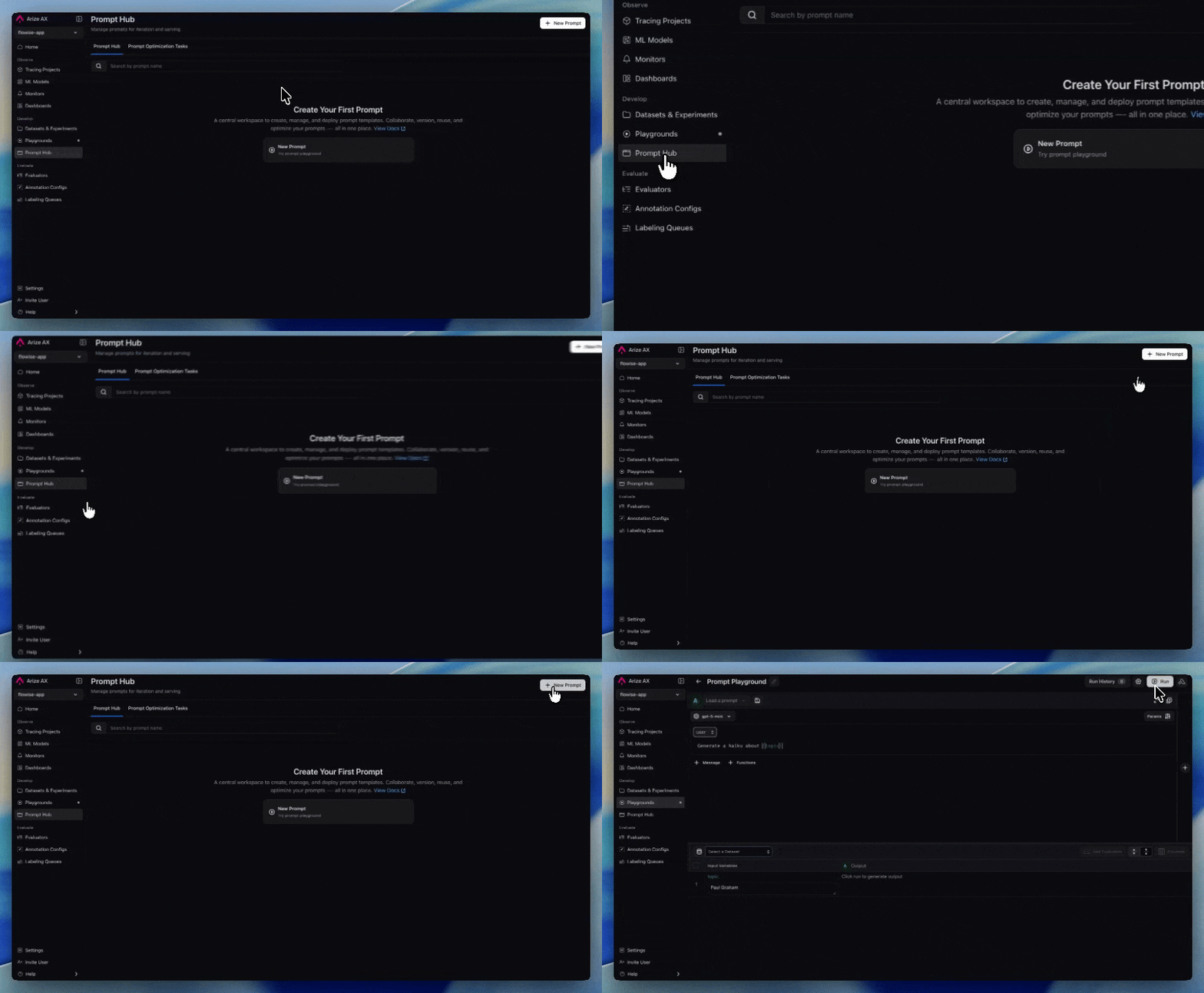
Navigate to Playgrounds and click New Playground to create a new playground. You can also start from the home page, and Alyx will create a playground for you.
Choose a provider or model
If you have not already added one, select your LLM provider and model in the Playground before you draft or run. Options include OpenAI, Azure, Vertex AI, AWS Bedrock, and others.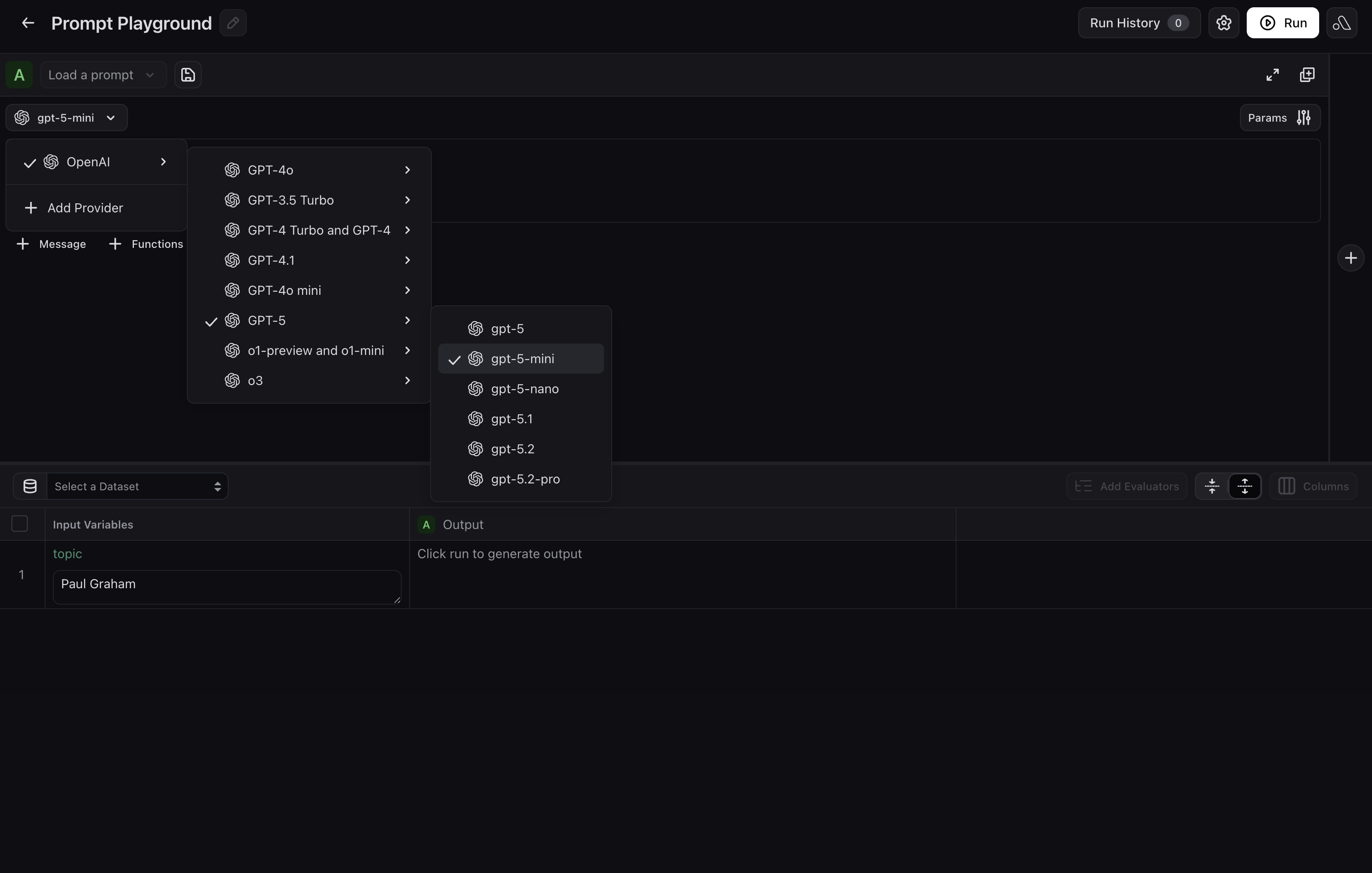
Draft and refine your prompt with Alyx
Describe your use case in plain language in the Alyx panel on the right. Include details about what your prompt should capture, desired output format, tone, length, etc. Alyx will wire them in automatically.For example, you could say:
Create a prompt for a customer support agent that handles returns and escalations. UseGive feedback on Alyx’s drafts and keep iterating until you are satisfied with the prompt.{customer_input}and{order_id}as variables.
Try the prompt in the Playground
If you added a dataset or test cases, run the prompt over rows to check outputs. If you skipped that step, exercise the prompt with manual inputs or keep iterating with Alyx. For a fuller testing workflow, see Test a prompt.
Create a new playground
Navigate to Playgrounds and click New Playground to create a new playground.
Choose provider and model
Select your LLM provider and model from OpenAI, Azure, Vertex AI, AWS Bedrock, and others.
Add prompt messages
Add any system, user, or assistant messages. Use curly braces around names (for example,
{destination}) for template variables filled dynamically at run time.Add function calling (optional)
Click Functions and paste tool definitions as JSON. Function descriptions must be in JSON format. To add multiple functions, add entries to the JSON list with the proper attributes. Set Function Selection to give the model instructions on when to invoke each function.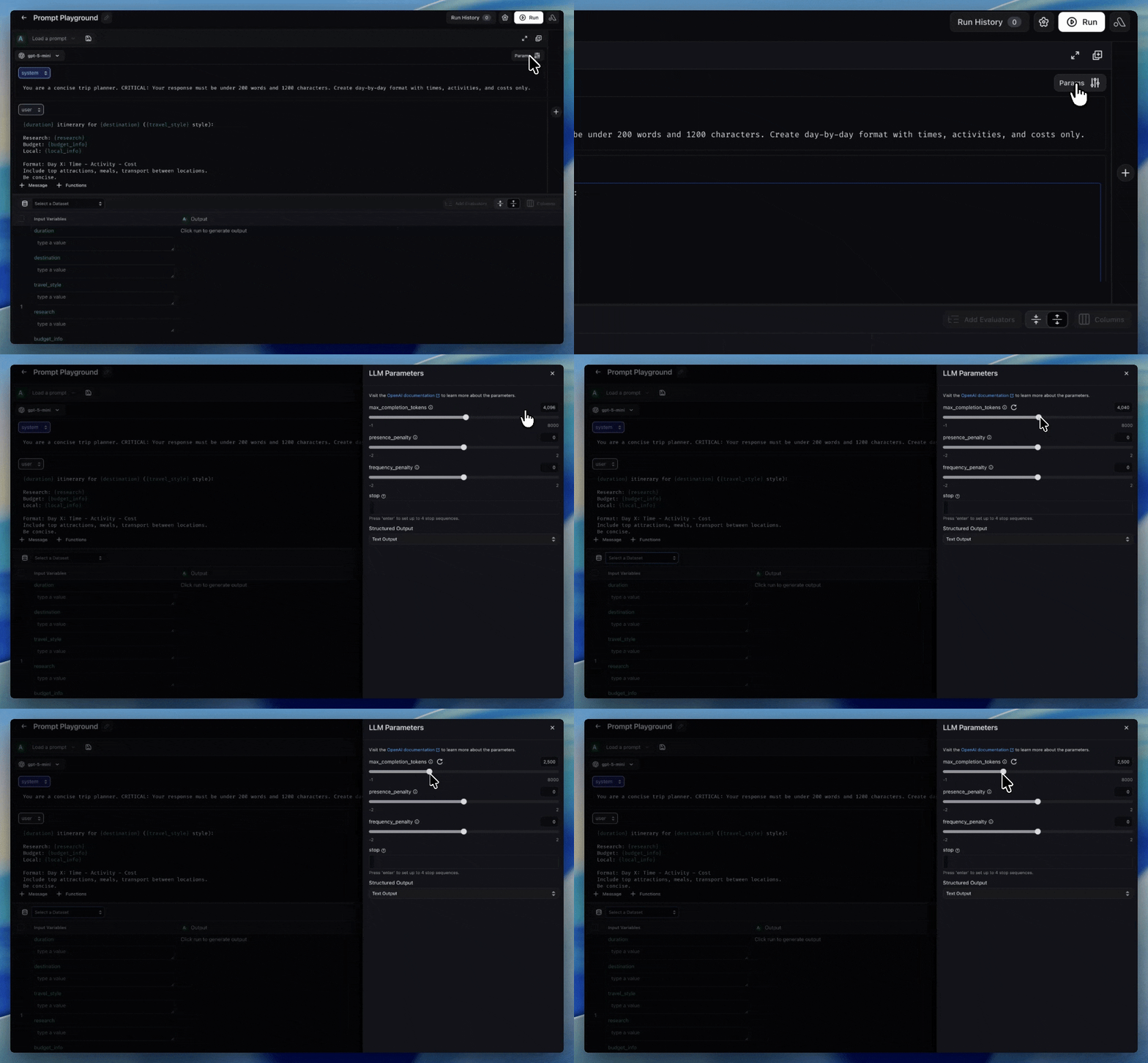
Create a prompt and initial version from code. Use the reference for your stack:
- Python SDK
- TypeScript SDK
- CLI
Full options (providers, invocation params, tools): Create a Prompt in the Python v8 Prompts API.
from arize._generated.api_client.models.input_variable_format import InputVariableFormat
from arize._generated.api_client.models.llm_provider import LlmProvider
from arize._generated.api_client.models.llm_message import LLMMessage

prompt = client.prompts.create(
    space="your-space-name-or-id",
    name="customer-support-agent",
    description="Handles returns and escalations",
    commit_message="Initial version",
    input_variable_format=InputVariableFormat.F_STRING,
    provider=LlmProvider.OPENAI,
    model="gpt-4o",
    messages=[
        LLMMessage(role="system", content="You are a support agent for {company}."),
        LLMMessage(role="user", content="{ticket_text}"),
    ],
)

print(prompt.id, prompt.name)
Full options: Create a Prompt in the TypeScript Prompts API.
import { createPrompt } from "@arizeai/ax-client";

const prompt = await createPrompt({
  space: "my-space",
  name: "customer-support",
  description: "Handles returns and escalations",
  version: {
    commitMessage: "Initial version",
    inputVariableFormat: "f_string",
    provider: "openAI",
    model: "gpt-4o",
    messages: [
      { role: "system", content: "You are a support agent for {company_name}." },
      { role: "user", content: "{ticket_text}" },
    ],
  },
});
Flags and message JSON shape:
ax prompts create in the CLI reference.ax prompts create \
--name "customer-support-agent" \
--space sp_abc123 \
--provider openAI \
--input-variable-format f_string \
--messages '[{"role":"system","content":"You are a support agent for {company}."},{"role":"user","content":"{ticket_text}"}]' \
--model gpt-4o \
--description "Handles returns and escalations" \
--commit-message "Initial version"