

Test prompts in the Playground against datasets, traces, or multiple versions
Workflow
- By Arize Skills
- By Alyx
- By UI
- By Code
Load or generate data
Load your prompt
`{variables}` referenced in your prompt with dataset columns.Iterate until satisfied
Create an evaluator
Run the experiment
Review results
Run the Playground with Alyx: load data, your prompt, and kick off an experiment

Compare Experiments: review outputs, latency, tokens, and columns in Datasets & Experiments
On a dataset
When modifying a prompt in the Playground, you can test your new prompt across a dataset of examples to validate that the model is hill climbing in terms of performance across challenging examples, without regressing on core business use cases.Create a dataset
Select your dataset in the Playground
Load or write your prompt
`{destination}`).Attach evaluators
Run and review
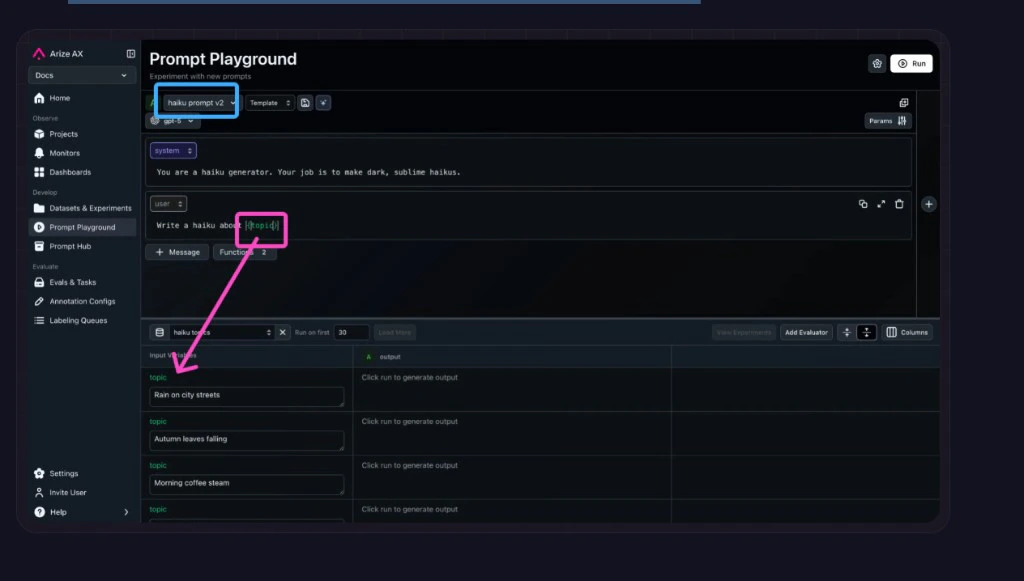
Load a prompt from Prompt Hub, pick a dataset, and map each row to variables in your messages
Attach evaluators before running the experiment
Run the experiment and open results
On a span (replay)
Load any production span directly into the Prompt Playground. All parameters, messages, variables, and function definitions are auto-populated so you can iterate on the exact call that went wrong. See production replay for the full walkthrough.Span replay bridges production traces and prompt iteration: you get the real execution context instead of guessing what caused a response—the same inputs, variables, and function calls you saw in production, ready to experiment on.With span replay, you can:- Debug in context — Reproduce the precise LLM invocation that occurred in production, including all inputs and configurations.
- Iterate instantly — Adjust prompts, parameters, or models and re-run them on the same real data, no manual reconstruction needed.
- Validate improvements — Compare responses side by side and ensure changes lead to measurable quality gains.
- Accelerate experimentation — Turn traces into actionable testing environments for faster, data-driven prompt refinement.

Replay a production span in the Playground
Multiple prompts at once
Compare up to three prompts side by side against the same dataset and evaluators. Use the + button to add prompt objects. See compare prompts side by side.Compare multiple prompt versions side by side
With tool calls
Tools drive agentic workflows, but debugging them is fiddly: unclear descriptions or parameter specs, wrong argument values, the LLM skipping or mis-picking a tool, or a missing tool for the user input.The Prompt Playground can pull tools from span data automatically (easiest when function calls are traced), so you iterate on prompts in the same tool setup you saw in production. Open Functions to edit or add tool definitions as JSON (use a list of objects for multiple tools) and configure Function Selection so the model gets clearer instructions on when to invoke each tool.See using tools in the Playground.Configure tools and function calling in the Playground
With image inputs
Multimodal models such asgpt-4o accept image URLs as variables. Add an `{image}` variable to your prompt, paste a URL into Input Variables, and run. Supported formats: JPG, PNG, GIF, SVG, WebP. Supported URL types: https://, gs://, s3://, base64. See image inputs in the Playground.


- Build a dataset - datasets, experiment types, and baselines
- Run an experiment - execute a task against a dataset
- Log experiment results - record outputs and metrics